The Power of a Billion
With over 1 billion DivX Software downloads, and more than 1.5 billion devices licensed for DivX playback, DivX pioneered the digital video experience.

 IS HERE!
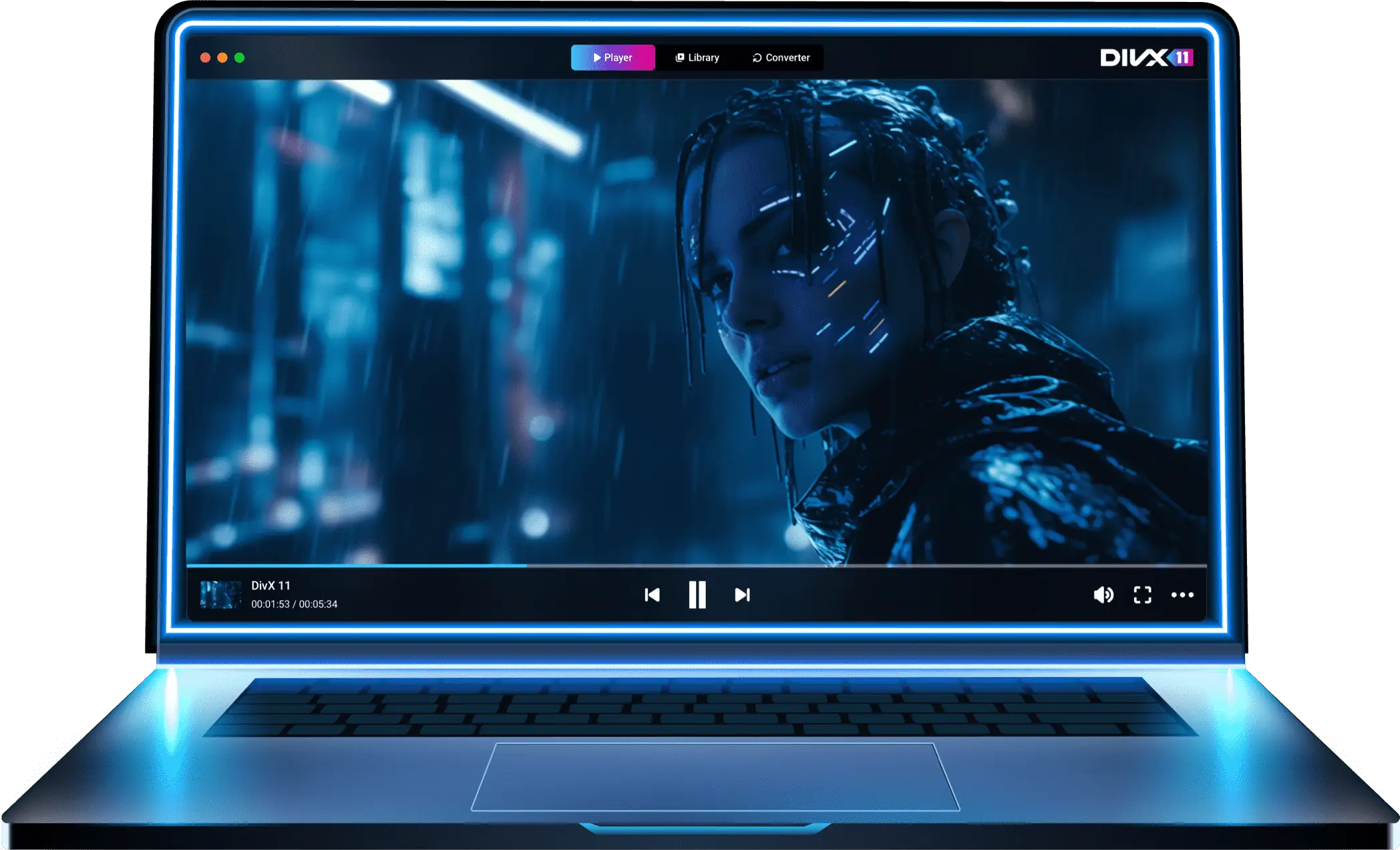
The best version of DivX Software is now available. Get an unparalleled video experience with an advanced video player and video converter. All for free.
Digital Video Pioneers
For over 20 years, DivX has been creating innovative technology to provide stunning entertainment experiences for people around the world. See how we’ve helped set the standard for high-quality digital video.
-
2001

2001
First Video On Demand (VOD) service launched selling movies in the DivX format.
-
2003

2003
First Tier One DivX Certified devices shipped containing DivX SDKs.
-
2006

2006
Launched Stage 6, a high-quality video sharing community to watch and download video.
-
2011

2011
DivX Plus Streaming released for video streaming devices
-
2013
2013
Over 1 billion DivX Certified playback devices shipped worldwide.
-
2016

2016
Facilitated the first ever live 4K streaming event.
-
2024

2024
DivX 11 launched delivering ideal video playback and converting.